Outcome
Expose an application at a Stackdome-generated public URL and verify that the current release is healthy and reachable. On a TLS-eligible organization domain, the URL completes a trusted HTTPS handshake.Prerequisites
- A resource with an HTTP port and evidence of the port the application actually listens on.
- The URL of Stackdome Cloud or a self-hosted installation, plus an API token. See authentication and API tokens.
- An organization domain already configured. Organization-domain management is currently dashboard/API-only; the public CLI has no domain command.
- For self-hosted Stackdome, DNS for the organization domain and wildcard application hostnames must point at the installation before HTTPS can be issued.
Agent prompt
Agent actions
1
Confirm the listening port
Inspect the application and container configuration. Use the container’s destination port, not a local development host-port mapping.
2
Confirm the domain boundary
Open Platform → Domains to confirm the organization domain when it is not already known. The current CLI cannot add, list, or remove organization domains.
3
Expose the port
Set the port’s
protocol to HTTP and public to true in stackfile.yaml. Omit subdomain to let Stackdome generate the prefix, or set it only when the user requested a stable custom prefix and the installed validator accepts it.4
Validate and deploy
Run
stackdome validate, confirm scope with stackdome whoami -o json, then run stackdome deploy --wait -o json, retain its non-empty release.id as the deployed release ID, and run stackdome status -o json.5
Return and test the URL
Run
stackdome open -o json, select an entry from urls, and test it. Run stackdome status --conditions; for a TLS-eligible hostname, require the resource condition TLSConfigured to be True with reason TLSReady.Success criteria
stackdome validateexits successfully with an HTTP port whosepublicfield istrue.stackdome deploy --wait -o jsonexits successfully, returns a non-emptyrelease.idthat is retained as the deployed release ID, and returnsrelease.stateasReleased.stackdome status -o jsonreturnsconverged_release.idequal to the deployed release ID,converged_release.stateasReleased, andconverged_release.healthasok.stackdome open -o jsonreturns at least one entry inurlsfor the public resource.- For a TLS-eligible hostname,
stackdome status --conditionsreportsTLSConfigured=Truewith reasonTLSReadyfor the resource. curl --head --max-time 15 <url>reaches the application without--insecure.
CLI and Stackfile workflow
Organization domains themselves are dashboard/API-only. The supported CLI/Stackfile path begins after the domain is configured: declare the public port, deploy it, and retrieve the URL.stackdome open -o json, because changing the resource name, port, or organization domain can change the URL.
Dashboard workflow
Your organization has one domain, and every hostname Stackdome hands out sits underneath it. You do not name those hostnames — Stackdome derives them from the stack, the resource, and the port. This page covers where the domain comes from, the DNS you have to create for it, and the exact shape of a generated hostname.Dashboard prerequisites
- Access to the Stackdome dashboard. During alpha, every signup owns one organization and uses its default project, so there is no role or project-selection step.
- A domain whose DNS you control. You will be creating records on it. If you only want to try Stackdome, you do not need one — see Install Stackdome for the
nip.iopath. - A domain already configured, if you are only reading the hostname rules. The installer puts one on the organization for you.
The organization domain
The domain is a property of the organization, not of a stack or a cluster. There is one, and generated hostnames are built under it.The installer sets the first one. Whatever you passed to--domain — or the stackdome.<PUBLIC_IP>.nip.io it picked for you — is written onto the organization named Default during install. So on a fresh install there is nothing to do here.To see it, open Domains under PLATFORM in the sidebar, at /domains.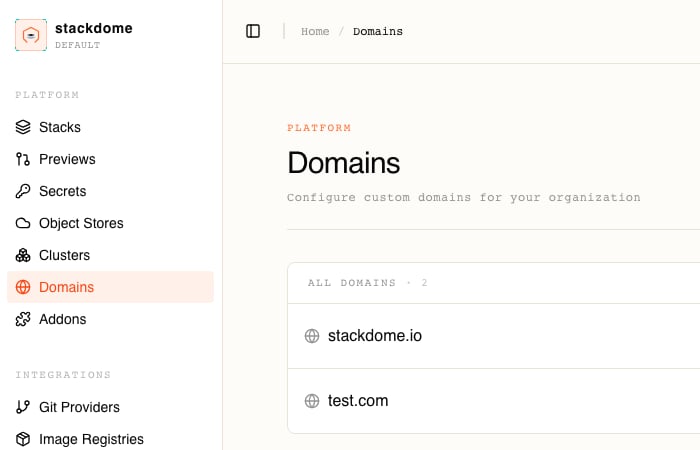
Adding one
Choose Add Domain. The dialog is a single field:It has to be a fully qualified domain name: at least one dot, a top-level label of two or more letters, each label alphanumeric with hyphens allowed only in the middle, and 253 characters at most. Anything else stays in the form — an empty field is
Domain name is required, a malformed one is Please enter a valid domain name, and one you already have is This domain already exists.Adding or removing a domain rewrites the organization’s whole domain list in one request. That is normally invisible, but it is why a failure here surfaces as a Failed to update domains toast rather than a per-row error.Keep exactly one domain. Once one is configured, the Add Domain button is disabled and hovering it explains why: “Currently only one domain is supported.”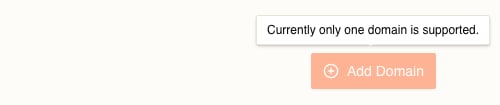
DNS
Two kinds of name have to resolve to the same place: the dashboard’s own name, and every hostname Stackdome generates for a resource’s public port, all of which sit beneath it.For the dashboard, anA record is enough:<prefix>.<resource>.example.com — so a record for the dashboard alone does not cover them. Add a wildcard:*.example.com covers every hostname Stackdome will ever generate. That is verified against a live install: a two-labels-deep name under a wildcard CNAME resolves to the same address as the apex.A wildcard is matched against the closest ancestor of the name that actually exists in the zone. So if you later create a record for
web.example.com in its own right, *.example.com stops answering for <prefix>.web.example.com — the generated hostnames for a resource named web go dark. If you want a vanity name for a resource, put it somewhere the wildcard does not shadow, or add the explicit records for the generated names too.- Port 443, for the traffic itself.
- Port 80, because certificate validation happens over HTTP. See below.
Generated hostnames
Only a public port gets a hostname. An internal port is reachable inside the stack and has no name outside it. Nothing you do on the Domains page changes that — it is the port’s Expose to public setting, on the resource in the drawer.The pattern is:web with public port 3000, on an organization whose domain is example.com, is served at:- The hostname is stable. Redeploys, rollbacks and edits to anything else leave it alone, because none of the three inputs change. The stack ID in particular survives everything short of deleting the stack.
- Renaming the resource or changing the port number changes the hostname. The name is part of the input twice — once in the hash, once as the second label — so a rename gives you a new hostname and retires the old one. Change the port number and the prefix changes too. Treat a rename as a URL change.
public_host and public_url outputs, which is the supported way for another resource to refer to it without you pasting the hash anywhere.A fixed prefix, through the API only. A public port accepts a
subdomain_prefix. Set it and the hostname becomes <subdomain_prefix>.<organization-domain> — one label, and the resource name drops out. There is no field for this in the drawer; it is only reachable through the API. Two ports in the same stack asking for the same prefix are rejected with subdomain_duplicate.Verify TLS
Run:TLSConfigured must be True with reason TLSReady. This is Stackdome’s certificate-readiness signal; you do not need to inspect certificate-management resources directly.The current CLI shows condition history only in the human-readable table. stackdome status --conditions -o json returns the ordinary structured Stack object, so keep this verification separate from JSON status checks until structured condition output is implemented.Hostnames ending in .nip.io, .sslip.io, .local, or .localhost are non-TLS trial names and do not receive a certificate.Dashboard and self-hosted troubleshooting
The hostname resolves but nothing is served. The port is internal. A hostname is only generated for a port marked public, so if you are guessing at a hostname for an internal port, there isn’t one. Open the resource in the drawer, check the port, and confirm it appears in the stack header’s public endpoints afterwards. If the header lists no endpoint, no public port exists.A resource with a public port refuses to deploy, complaining about domains. The organization has none configured. Stackdome cannot build a hostname without one, and the failure readsno domains found for organisation <id>. Add one on /domains.TLS is not ready. Run stackdome status --conditions and read the resource’s TLSConfigured reason and message. Confirm the hostname resolves to the Stackdome installation and that public traffic can reach it. Do not report HTTPS success until the condition is True with reason TLSReady.A URL that used to work now 404s. Someone renamed the resource or changed the port number. Both are inputs to the generated prefix, so both mint a new hostname. Read the current one off the stack header.HTTPS breaks after you change the organization domain. Generated hostnames are rebuilt from the organization’s domain, so changing it changes every hostname the next time a resource is saved. Update DNS for the new domain, and expect fresh certificates to be requested for the new names.
Stacks and resources
What a port is, and the difference between a public and an internal one.