Identify and verify a release
List the releases for the current stack, newest first:release list returns release summaries. release info returns the detailed release, including its state, message, cause, validation errors, pins, outcome, snapshot, and live status when the release is active or currently serving.
A release is terminal when state is Released, Failed, Superseded, or Cancelled. Released proves that release converged at some point; it does not by itself prove the release is still serving or healthy. For the current deployment, also run:
converged_release.id to match the release ID, converged_release.state to be Released, and converged_release.health to be ok. Before claiming that release is also the newest attempt, require latest_release.id to match it and latest_release.state to be Released. See inspect stack status for the full check.
Every release subcommand accepts --stack <name> to override the current stack context.
Follow release events
Read the recorded events once:--follow, structured output is an array of release events. With --follow -o json, the CLI emits newline-delimited envelopes containing event and data; process one line at a time.
Events include timestamped stack or resource messages, levels, and links such as a build ID. Use a build ID with the build-failure guide instead of searching runtime logs for build output.
Cancel a pending release
Cancellation is available only while a release isPending:
stderr; it does not return a structured result. Verify the terminal state with release info.
What a release is
A release is one deploy of one stack. It has an API ID and a human sequence number scoped to that stack —#1, #2, #3. It carries a complete copy of the stack as it was at deploy time: every resource, its source, its ports, its environment, every volume and every mount, and the connections between nodes on the canvas.
It also carries the artifacts those resources resolved to:
- A resource with a git source pins the commit the revision pointed at.
mainmoving on does not change the release. - A resource with an image source pins the image digest behind the tag.
postgres:16being re-published does not change the release.
#4 is what #4 was.
How a release reaches convergence
Every deployment follows the same product-level stages:- Snapshot and pin the stack definition and its artifact coordinates.
- Validate the snapshot, attaching any errors to the affected resource and field.
- Apply the desired application state to the deployment destination.
- Converge only when every resource reports ready for this release’s revision.
Deploying from the dashboard
You deploy from the canvas, on the Architecture tab. Once you have unshipped edits, a pill appears above the canvas:- Apply 1 change (or
Apply 3 changes) counts what is in your draft. - Details opens the diff, so you can read the change before it ships.
- Deploy ships it. Cmd/Ctrl + Enter does the same thing.
- The ··· menu next to it offers Discard draft changes if you would rather throw the draft away.
vs #2 against the release it differs from.
Status
Each release has one state. These are the values the API returns, and the words the rest of this documentation uses:Released, Failed, Superseded, and Cancelled are final — a release in one of those states never changes again.
The timeline is deliberately quieter than that list. It labels only what you need to notice:- LIVE, on the one release that is currently serving traffic. This is the release Stackdome last converged on, which is not always the newest one — if your latest deploy failed,
LIVEstays on the release before it. - FAILED, with a Deploy failed box in the release’s card carrying the reason, for example
timed out waiting for convergence after 15m0s. - DEPLOYING while a release is
PendingorInProgress.
Superseded and Cancelled releases, which instead show their reason as the row’s subtitle, such as Release superseded by release #2.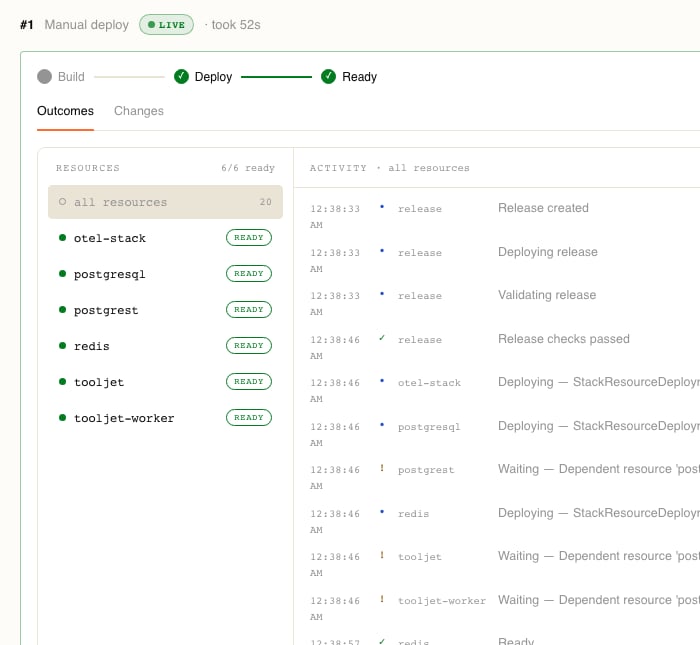
Inside a release
Expanding a release opens its card:- A Build → Deploy → Ready tracker across the top.
Buildis inert for a stack whose resources all come from images — there is nothing to build — and ticked for one withgit buildresources. - Outcomes, which is the default view: a RESOURCES panel counting how many are ready (
6/6 ready) with each resource’s state beside it, and an ACTIVITY console of everything that happened, timestamped. Click a resource in the panel to filter the console to just that resource, andall resourcesto zoom back out. - Changes, which diffs this release’s configuration against the previous one — resources, volumes, and connections — headed
vs #3.
Pending. Once it is InProgress the rollout has already started, so cancelling is no longer offered — deploy again, or roll back through the dashboard.
A stack keeps its recent releases and prunes the rest: 10 by default, always keeping at least 5 successful ones. Both are per-stack settings. So is the deploy timeout, 15 minutes by default.
Logs
Two different things are worth reading, and they live in two places.Runtime logs are on the stack’s Logs tab. It opens one stream for the whole stack, tagged per line with the resource that wrote it, and it showsCONNECTED while the stream is live. Narrow it with:- Resources — a multi-select of the resources in the stack, searchable, so you can watch one or a few.
-
The time-range control —
Live Tail (4h)follows new lines as they arrive;Last 30 minutes,Last 1 hour,Last 4 hours,Last 24 hoursandSince beginninglook backwards instead. -
The panel’s own search box, which highlights matches and counts them.
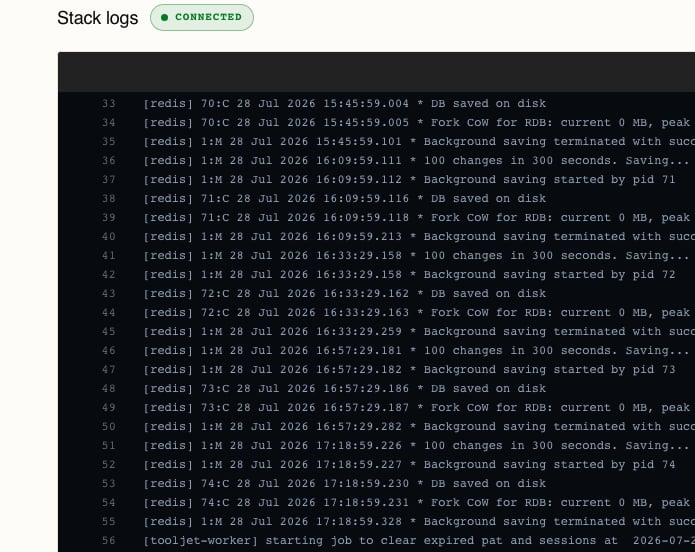
Building web, then Build succeeded for web — or the failure, with the reason, if it did not. That is where you look when a deploy stalls before anything starts running.Metrics
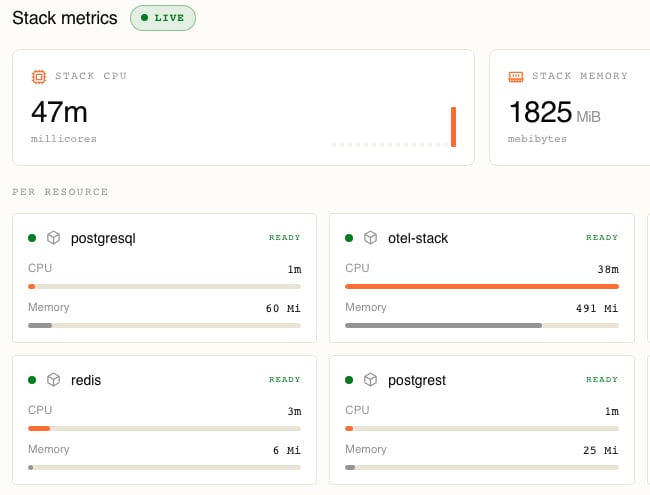
The Metrics tab shows live usage for the running stack, refreshed continuously with the time of the last update:- STACK CPU in millicores and STACK MEMORY in mebibytes for the stack as a whole, each with a short sparkline of recent samples.
-
A PER RESOURCE card for each resource, with its state and its own CPU and memory reading. The bars compare resources against each other, not against a limit.
Rolling back
A release you can name is a release you can return to.- Open the stack and go to Deployments.
- Find the release you want to be running again.
- Open its ⋮ menu — the one at the right of the row — and choose Rollback to this.
Released. A Failed, Superseded, or Cancelled release never ran to completion, so there is nothing there to return to, and its menu offers only Copy release ID.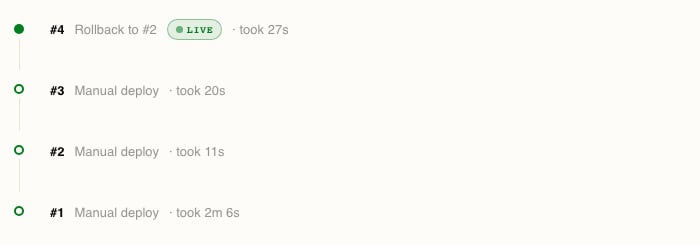
- It does not touch your data. Volumes, addons, and anything written inside them are unaffected. Rolling back reverts configuration and code, not state.
- It does not discard your draft. Unshipped edits stay staged, and are still waiting the next time you look at the canvas.
Released release stays a valid rollback target, Stackdome protects what it references: while it is still in the stack’s history, the secrets, volumes, and addons it depends on cannot be deleted out from under it.
Stacks and resources
The vocabulary a release is built from: stacks, resources, sources, ports, volumes.
Deploy from git
Connect a repository, and let Stackdome build the image each release pins.