stackdome-agent on that cluster then carries out deployments.
The single-server installer already connects its local k3s cluster as compute named local. A fresh install therefore needs no work on this page. Use this procedure only when an organization currently has no connected cluster, including after deleting an unused cluster as described below.
Replacement behavior
There is no in-place replace or migrate action. The dashboard exposes Delete Cluster, and the API deletes the cluster’s in-cluster registry before removing the cluster record. Only after that deletion succeeds does Add Cluster become available again.Prerequisites
- Access to the Stackdome dashboard. Open Clusters under Platform to register compute. During alpha, every signup owns one organization and uses its default project, so there is no role or project-selection step.
- The target cluster runs
stackdome-agent. Without the agent, the hub will happily store your credentials and write custom resources that nothing ever reconciles. Install the chart into thestackdome-control-planenamespace on the target cluster before you register it. - The cluster’s API server is reachable from the hub. The hub opens outbound connections to the URL you register. For a cluster on another machine that means its API port — commonly
6443— has to be open to the machine running Stackdome, not just to your laptop. kubectlaccess to the target cluster, to create the service account in the next section.- An
https://URL. Registration rejects any other scheme.
Get the credentials
Stackdome authenticates to the cluster as a service account, using a long-lived token from akubernetes.io/service-account-token Secret. Run this against the target cluster:
extractClusterCredentials performs when it registers the server it is installing on:
Getting the CA wrong produces one specific message, and it is worth knowing which one. Registration only base64-decodes the value when it is valid base64; a PEM certificate is not, so a decoded CA skips the decode entirely and the certificate pool is then built from nothing. The failure you see is:
cluster CA data is not valid — the sibling message cluster CA data is not valid base64 exists in the code but cannot be reached, so you will never see it.
You also need the cluster’s API server URL. Read it off your kubeconfig, but sanity-check it against the machine running Stackdome rather than trusting it blindly: a kubeconfig written on the cluster host often says https://127.0.0.1:6443, which means nothing to a hub somewhere else. Use the address the hub can actually dial, such as https://203.0.113.10:6443.
Do not substitute
kubectl create token stackdome-admin. That mints a short-lived, expiring token; the cluster works for an hour and then quietly stops accepting the hub’s calls. The Secret above is what keeps the credential durable.Connect it in the dashboard
1
Open Clusters
In the sidebar, under PLATFORM, choose Clusters. The page lists the organization’s clusters under ALL CLUSTERS.
2
Start the form
Choose Add Cluster. The Add New Cluster dialog opens. If the control is greyed out, the organization already has its one alpha compute target; you cannot connect another.
3
Fill in the four required fields
Every field marked with an asterisk is required, and Add Cluster stays disabled until all four have a value.
4
Submit
Choose Add Cluster. On success the dialog closes, a “Cluster added” toast appears, and the connected compute shows up in the list.
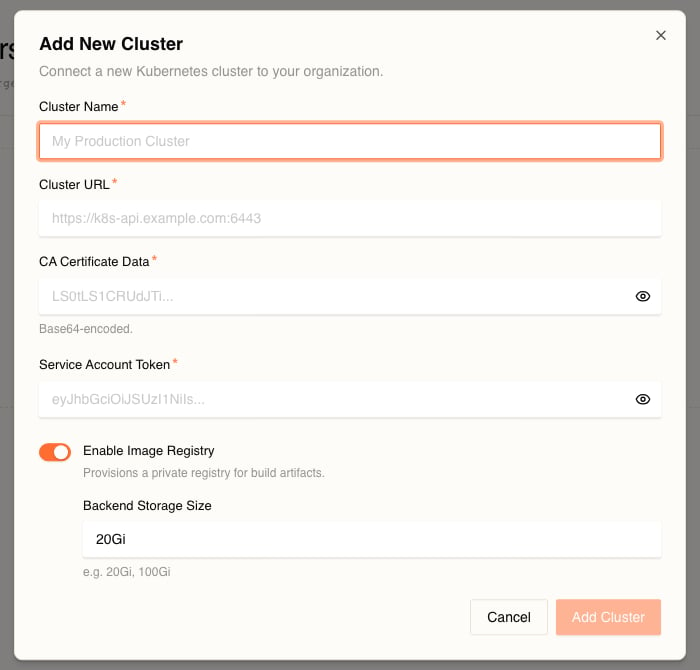
Both credentials are encrypted before they are stored, and neither is ever displayed again — the detail page shows dots. There is no rotate action: changing them requires the delete-then-connect path and its constraints under Replacement behavior.
Image registry
Leave Enable Image Registry on unless you have a specific reason not to. Stackdome builds container images from your git repositories, and a build has to push what it produces somewhere the cluster can pull it back from. It resolves that destination on the cluster the stack runs on, so a cluster without a registry cannot run git-based deploys — only resources that reference an image you already host elsewhere. Turning the toggle on provisions a private registry inside the connected cluster, backed by a persistent volume of the size you enter.20Gi is the form’s default; the installer gives the cluster it registers 50Gi. Pick according to how many image versions you expect to accumulate.
The dashboard does not ask you to name the registry. It always sends the same fixed name, default-registry, so there is nothing to get wrong and the length limit described next never comes into play when you register through the UI.
Naming the registry through the API
cluster_image_registry.name is yours to set if you register a cluster by calling the API directly, and that is the one path where the length limit matters.
Leave the name empty and Stackdome derives one from the identity of the registry — the organization and the cluster it lives on — as <org-slug>-<8 hex of org id>-<8 hex of cluster id>, capping the result at 50 characters (maxRegistryNameLength in pkg/services/organisation_service.go) by truncating the organization slug to fit.
That number is not arbitrary. The registry runs as a StatefulSet, whose pods carry a controller-revision-hash label built by appending -<10-character hash> to the registry name, and a Kubernetes label value cannot exceed 63 characters. A longer name produces pods Kubernetes refuses to admit.
The cap only guards the derived name. A name you supply yourself is used verbatim and is not truncated for you, so keep your own names inside the same 50 characters.
This registry belongs to the cluster and is created with it. It is not one of the entries under INTEGRATIONS → Image Registries — that page holds credentials you add for external registries, and it stays empty even when your cluster’s own registry is running.
Verify
Open the cluster from the list to reach its detail page.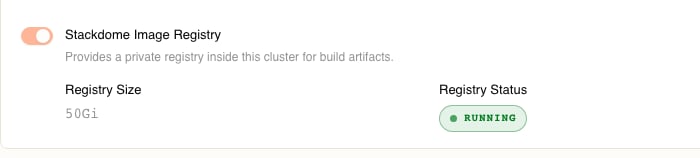
If you registered the cluster without a registry there is no pill to read, and your first deploy is the test.
When it does not connect
Work through these in order.-
Reachability from the hub, not from you. The URL has to resolve and connect from the machine running Stackdome. Test it there rather than from your laptop:
A
401is a good result — it means you reached a Kubernetes API server and it declined an unauthenticated request. This probe sends no credential;--insecureis used only to separate network reachability from certificate and authentication checks. Never add an authorization header to it. A hang or a connection refusal points at a firewall or cloud security group that does not allow the hub’s IP on that port. A127.0.0.1or private address copied straight out of a kubeconfig is the single most common cause. -
CA and token validity. Confirm the Secret was populated and still authenticates from a protected temporary directory on a machine that can reach the cluster. This request verifies the server against the collected CA and gives
curlthe bearer header through a mode-0600config file, so the token does not appear in the process argument list:200means the CA and credential are good. A certificate error means the endpoint does not present a certificate trusted by the collected CA; stop rather than bypassing verification.401means the token is wrong, was pasted still base64-encoded, or has expired because it came fromkubectl create tokeninstead of the Secret.403means the token authenticates but the ClusterRoleBinding did not apply. The shell trap deletes the CA and credential-bearing config when the diagnostic exits. -
The agent is actually running. Credentials and reachability can both be fine while nothing reconciles. Check the operator on the target cluster:
-
Registration errors are explicit. If the form itself rejects the submission, the message names the cause:
cluster CA data is not valid: data does not contain any valid RSA or ECDSA certificates(the value is not a base64-wrapped certificate — most often because it was decoded first),cluster URL must use https scheme,cluster with this api URL already exists, orcluster already exists for org.
Right after registering, Stackdome also tries to create a
letsencrypt-prod ClusterIssuer on the new cluster so your applications can get certificates. It needs cert-manager to be installed there. Failure is logged and does not fail registration — so a cluster can register cleanly and still have no working certificate issuer. See Install Stackdome for what the issuer is configured with.